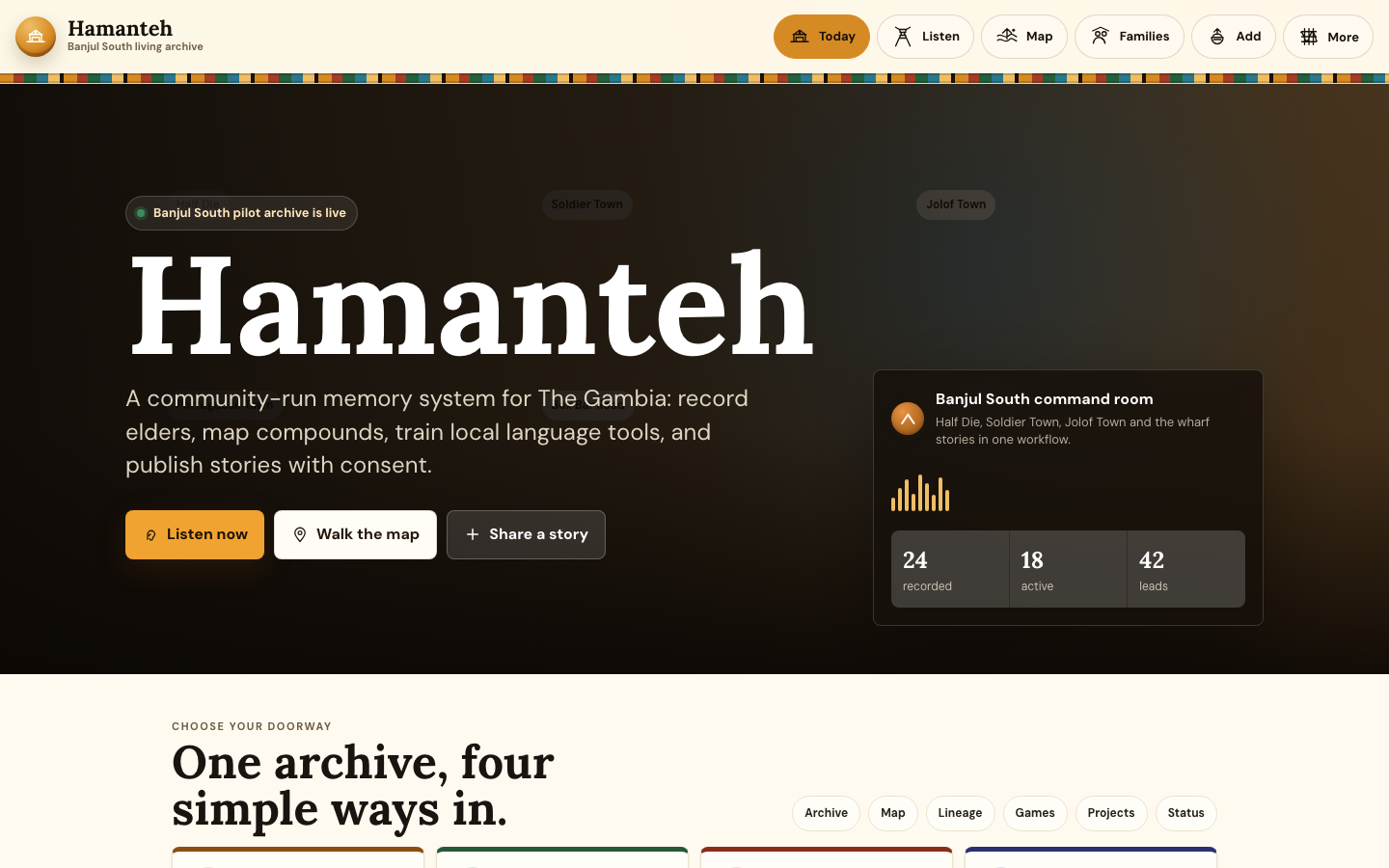
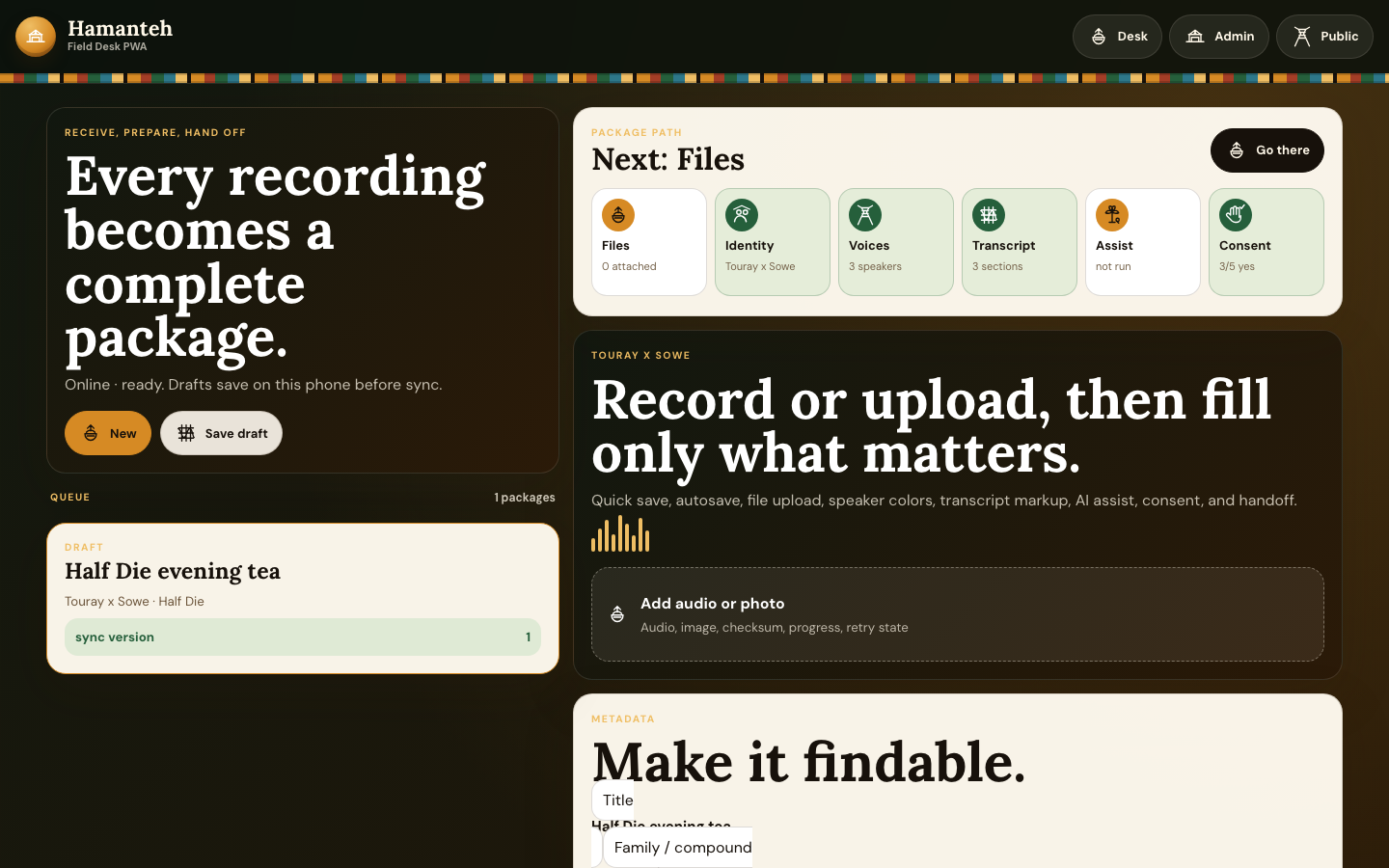
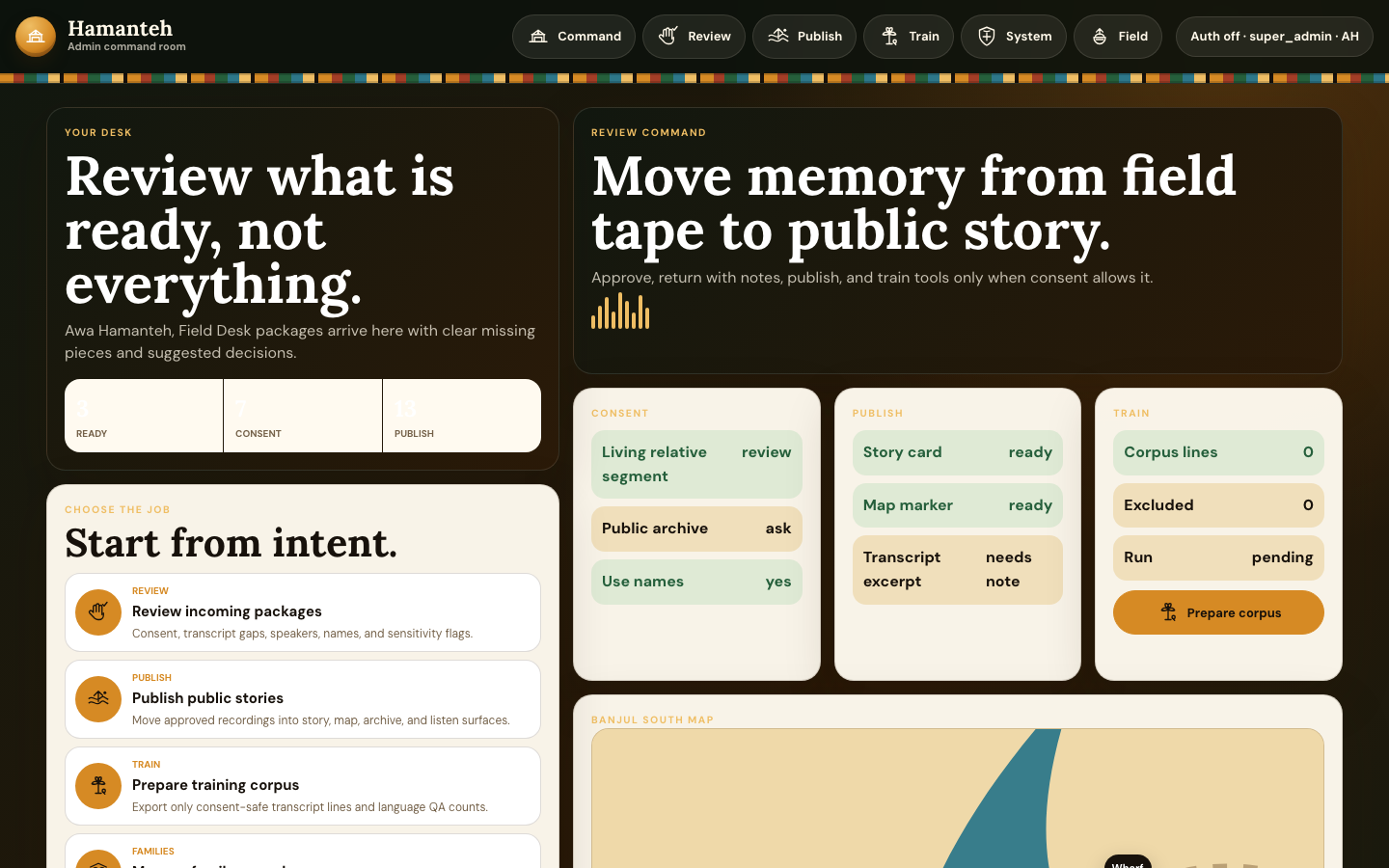
Public Site
Families and visitors listen, browse stories, explore the map, search names, play history games, and submit memories.
VisitorsFamiliesCommunity
Hamanteh help and docs
This guide explains every main screen and workflow in plain language for the people receiving files, transcribing Wolof and Wolish recordings, reviewing community history, and publishing the archive for families to explore.
The whole system
Hamanteh is organized so each person can stay in their lane: community members explore and submit, field staff capture files, transcribers clean recordings, reviewers publish, and admins keep the system healthy.
Families and visitors listen, browse stories, explore the map, search names, play history games, and submit memories.
Mobile staff create recording packages, add files, capture consent, collect metadata, and hand work to the admin queue.
Transcribers pick a recording, prepare an AI draft, correct the Wolof/Wolish transcript, label voices, and send to review.
Reviewers check quality, consent, sensitivity, family records, and whether the story should become public.
Admins export consent-safe confirmed transcript data, review exclusions, and track language and entity quality.
Admins monitor Google Drive, health, users, feature flags, backups, trash, and audit logs.
Daily work
This is the working rhythm for thousands of files. The goal is to move each recording through the correct next step without losing context.
Use Sync latest so Hamanteh imports only new or newly modified Google Drive files since the last watermark. Existing Drive files are skipped, so staff do not repeat work.
Select one file for careful editing or assign many simple files to staff. Batch actions help volume, but the active transcript stays the main focus.
The fastest workflow is listening, typing, speaker labeling, metadata cleanup, and handoff in one focused place.
Check missing consent, unclear language, no audio, duplicate uploads, sensitive content, and files that need a human decision.
Primary staff tool
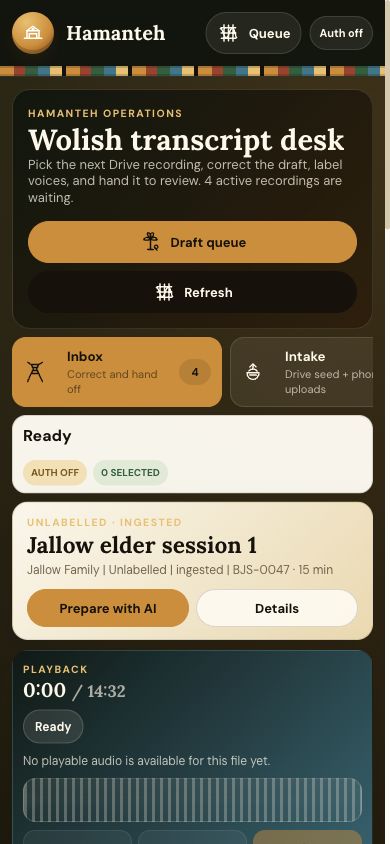
This is the main place to process recordings. It works like an inbox plus an editor: files on the left, audio and transcript in the middle, details on the right.
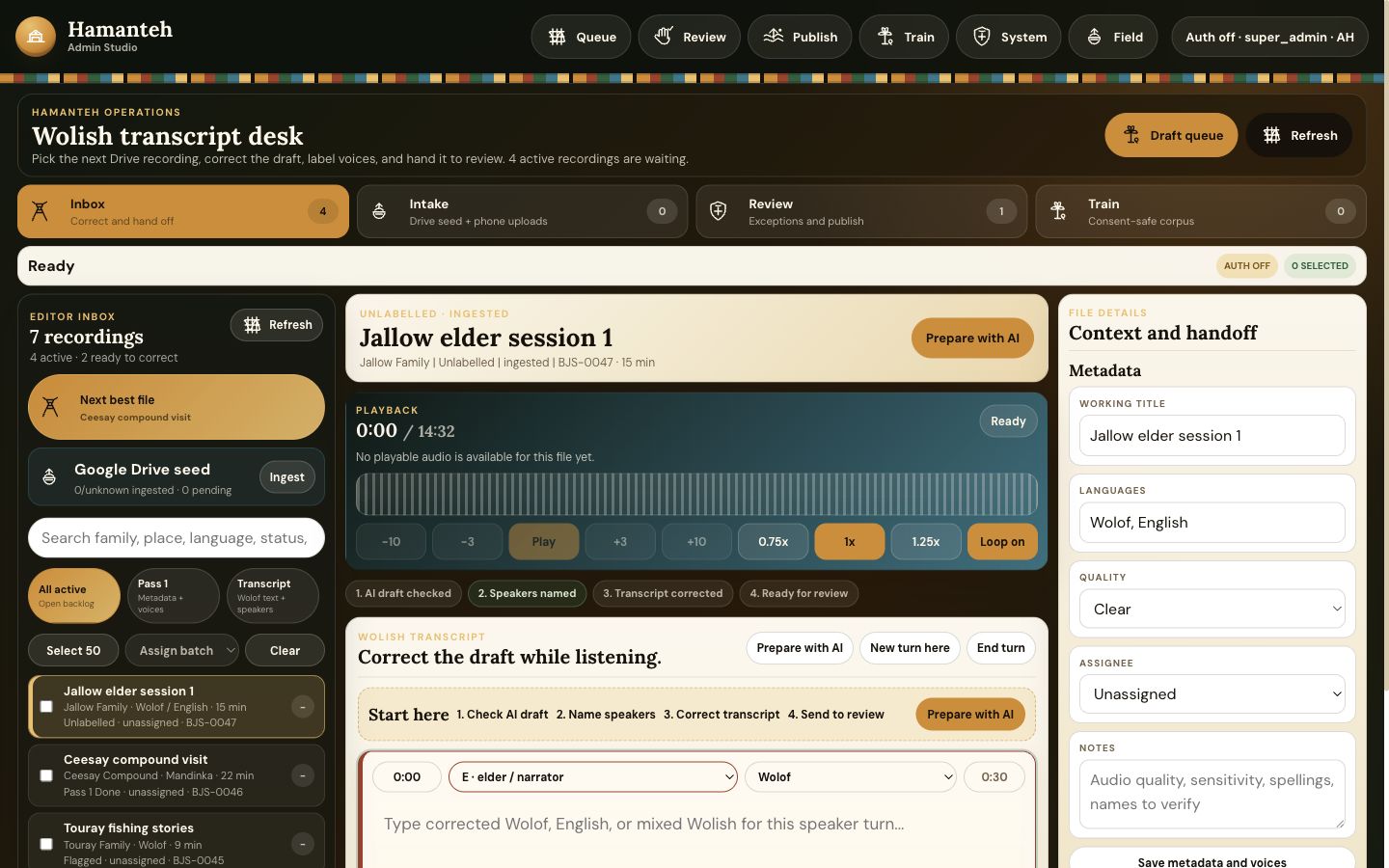
Find the next recording. Filter by status, search, batch assign, and check Drive ingest.
Listen and type in the same place. Click timestamps to seek, correct text inline, and mark uncertainty.
Set title, narrator, place, date, language, speakers, consent, sensitivity, AI notes, and handoff status.
Prefer the next best file unless you are working on a specific person, location, or assigned batch.
AI can draft transcript guesses, speaker suggestions, language tags, summaries, and sensitivity notes. Treat all AI output as help, not authority.
Use play, pause, skip, speed, loop selection, and timestamps while editing text. The transcript and audio should stay tightly linked.
Use real names when known, or simple labels like Narrator, Elder, Interviewer, and Speaker 2. Colored chips help voices stay clear.
Save draft if more work remains. Send to review when transcript, metadata, speakers, consent, and sensitivity notes are ready.
Mobile-first intake
Field is for staff who receive recordings on phones. It supports packages, uploads, metadata, speaker notes, consent, and handoff.
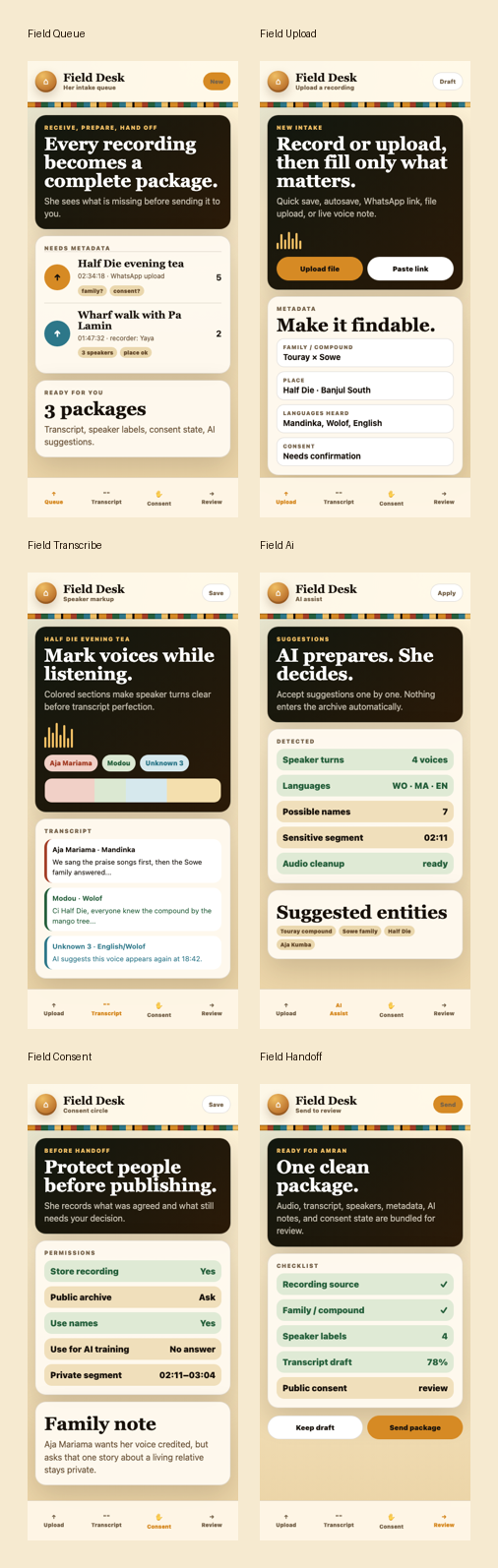
A package is one bundle of material from one recording session or source. Add a plain working title even if the final title is unknown.
Upload phone recordings, pictures, consent notes, and source details. Raw audio is uploaded while connected in this version.
Record narrator, interviewer, place, date, language, family, consent status, and urgent sensitivity notes.
When the package has enough information, send it to the admin queue for transcription and review.
After transcription
Review is where the archive protects people. A file can be ready for transcript work but still not ready for the public site.
Check transcript quality, title, summary, names, dates, places, speaker labels, and language notes.
Return the file to staff with a clear note when something is missing or needs correction.
Keep files private when consent is missing, the source is unclear, or sensitivity risk is too high.
Approved files become visible in the public archive, listening pages, map, stories, and family surfaces.
Use submissions, pipeline, or file detail screens to see what is waiting.
No consent means no public release. Add the reason so staff understand what is missing.
The published title, description, people, places, and language tags should make sense to families without showing internal notes.
For families and visitors
The public site is the living history side. It should feel warm, clear, and rooted in Banjul and Gambian oral history, not like an internal data system.
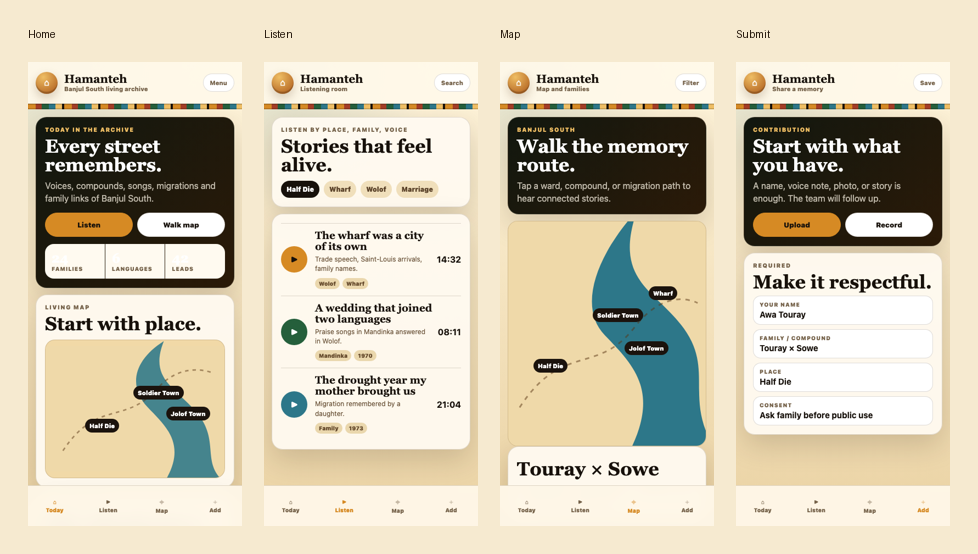
Visitors open published recordings, read context, and follow related people, places, and themes.
Map, lineage, archive, and story screens help people move by place, family, topic, and time.
The submit flow lets community members share memories, files, and contact details for review before publication.
Find, games, projects, about, privacy, terms, and status pages make the archive easier to understand and trust.
Better tools over time
Training is not automatic publishing or blind AI approval. It is a consent-safe way to prepare clean archive data for future tools, search, language support, and quality checks.
Choose which confirmed transcripts can be included. Exclude private, sensitive, or unconsented sections.
Create structured data for future analysis or model improvement. Each line keeps source and consent information.
Check language, entity, family, place, and exclusion counts so the team knows what the archive is learning from.
AI output should always be described as a draft or suggestion. For Gambian Wolof and Wolish, the human transcript is the trusted version.
When something goes wrong
These screens are mainly for admins, but staff should know what to ask for when files do not appear, audio fails, or a workflow seems blocked.
Plain terms
These are the meanings staff should use when talking about the workflow. Keeping the language consistent prevents confusion.
One bundle of recordings, photos, notes, consent, and metadata from a source or session.
Helpful guesses from AI. A person must listen, correct, and confirm.
A person speaking in the recording. Use real names when known, or simple labels when unknown.
Mixed Wolof and English in the same conversation or sentence.
A word, name, or phrase that the transcriber cannot confidently confirm.
Anything that may need privacy, family permission, or careful review before public release.
Return a file to staff because it needs more work.
Approved and visible to public visitors.
Screen index
Use this table when someone asks, "Where do I do that?" The links open the screen inside Hamanteh.
| Screen | Who uses it | Purpose | Link |
|---|---|---|---|
| Home | Visitors | Start point for the living archive. | / |
| Stories | Visitors | Curated narrative entry points into the archive. | /stories |
| Archive | Visitors, reviewers | Browse published records and details. | /archive |
| Listen | Visitors | Open a published audio story and transcript context. | /listen/1 |
| Map | Visitors | Explore stories by place. | /map |
| Lineage | Visitors | Explore family and relationship context. | /lineage |
| Find | Visitors, staff | Search people, places, topics, and files. | /find |
| Games | Visitors | Interactive learning and archive engagement. | /games |
| Projects | Visitors, partners | Explain collection work and community projects. | /projects |
| Submit | Community | Share memories, files, and contact details. | /submit |
| Help and Docs | Everyone | Plain-language guide to the screens and workflows. | /help |
| Field PWA | Field staff | Mobile intake, upload, metadata, consent, handoff. | /field |
| Work Alias | Field staff | Compatibility path into field/pass workflows. | /work |
| Admin Desk | Transcribers, admins | Main inbox and transcript editor. | /admin |
| Pipeline | Reviewers | Track where files are in the process. | /admin/pipeline |
| Submissions | Reviewers | Review public submissions before adding to archive work. | /admin/submissions |
| Files | Admins | Manage individual files, source status, and file details. | /admin/files |
| Families | Admins | Create and update family records. | /admin/families |
| Export | Admins | Produce training/corpus exports and review excluded segments. | /admin/export |
| Analytics | Admins | See collection and usage signals. | /admin/analytics |
| Integrations | Admins | Check Google Drive and external services. | /admin/control/integrations |
| Health | Admins | Confirm app health and API status. | /admin/control/health |
| Backups | Admins | Protect and restore archive data. | /admin/control/backups |
| Users and Audit Log | Admins | Manage access and see important changes. | /admin/control/users |
| Trash | Admins | Recover or permanently handle removed items. | /admin/trash |
Source of truth
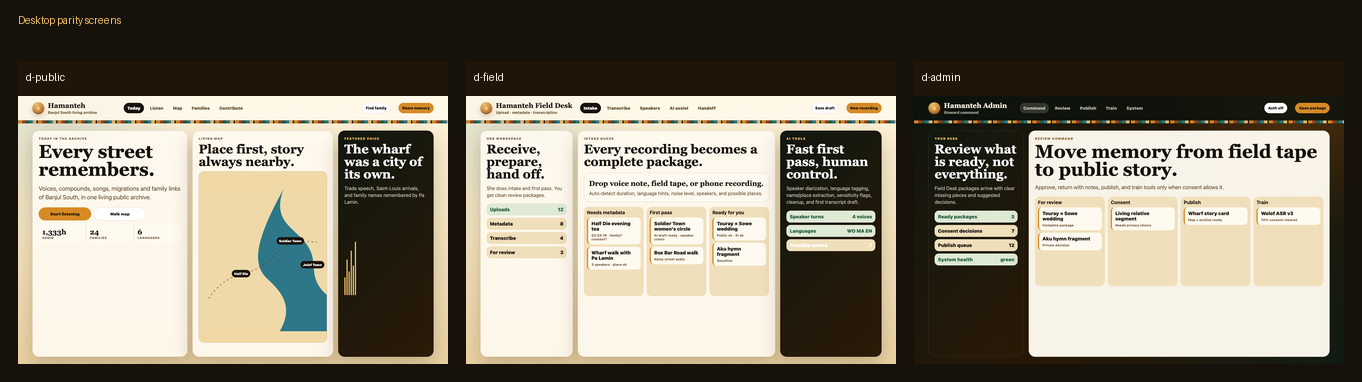
These sheets show the approved visual direction and information architecture that live screens should keep following.